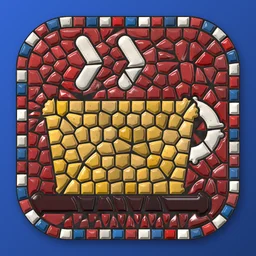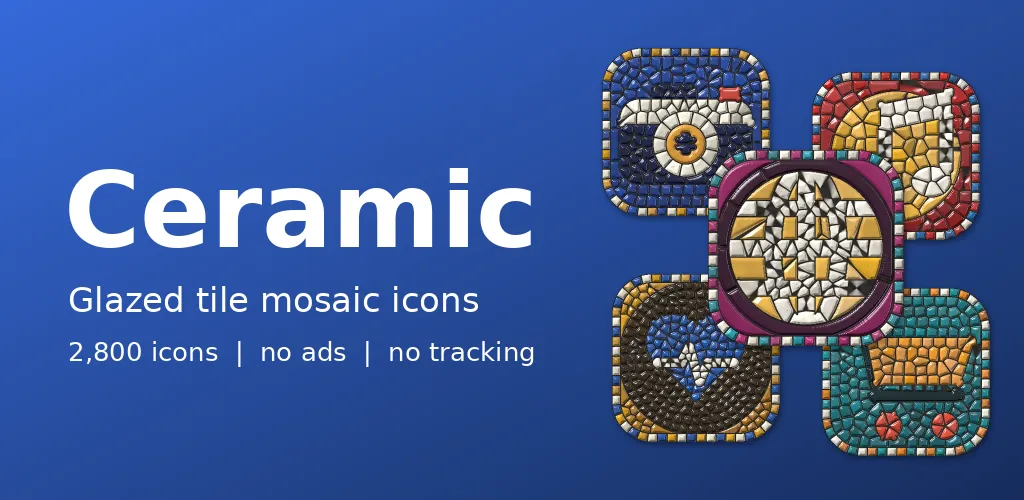
Look closely at a mosaic and you see that it is only a lot of very small, very patient decisions. Ceramic is made the same way. Its icon is a coffee cup made of tiles, the sort of thing you might find on a cafe wall.
Tiles, glaze and grout
Every icon is built from small ceramic tiles that run in rows along the outline of each shape, each with its own glaze and shine. A border of coloured tiles circles the edge, with dark grout between them. You can have classic, bold or fine tile size, and ten glazes: cobalt, orchid, saffron, emerald, crimson, amethyst, lagoon, pewter, amber and jade.
Patience, automated
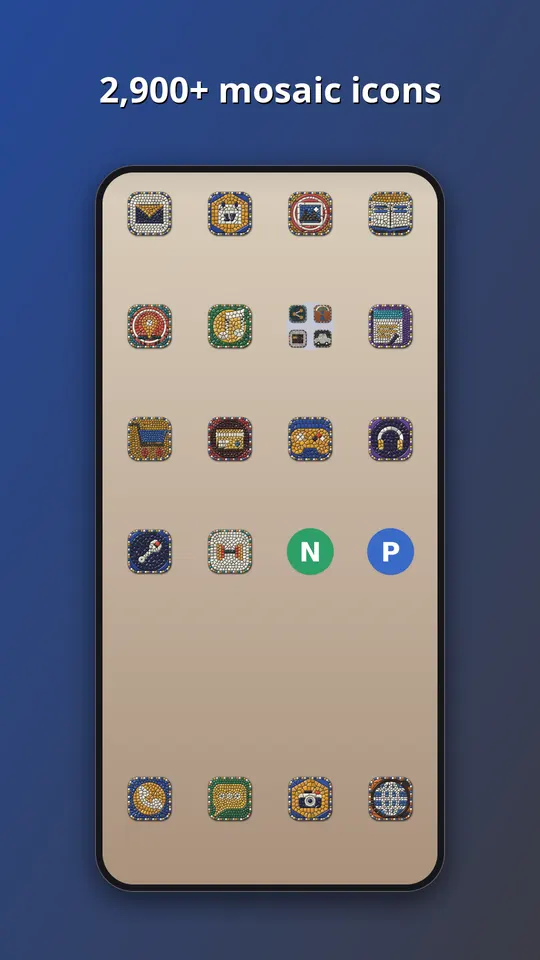
A person laying a mosaic cuts tiles to fit the curves. Our renderer does the same job by arithmetic: it lays tiles along the contour of a generic symbol, shrinks the ones that must turn a corner and fills the gaps with grout. Each tile gets a tiny random shift in tone and shine, which is what makes a wall look tiled over many afternoons rather than printed. Finer tiles give more detail but more noise at small sizes, so the tile size is chosen per icon.
What is inside
- Almost 3,000 icons in one style, in ten glazes: cobalt, orchid, saffron, emerald, crimson, amethyst, lagoon, pewter, amber and jade.
- A themed tile for apps that have no icon of their own yet, in this case a mosaic tile that matches the set, so the grid has no gaps.
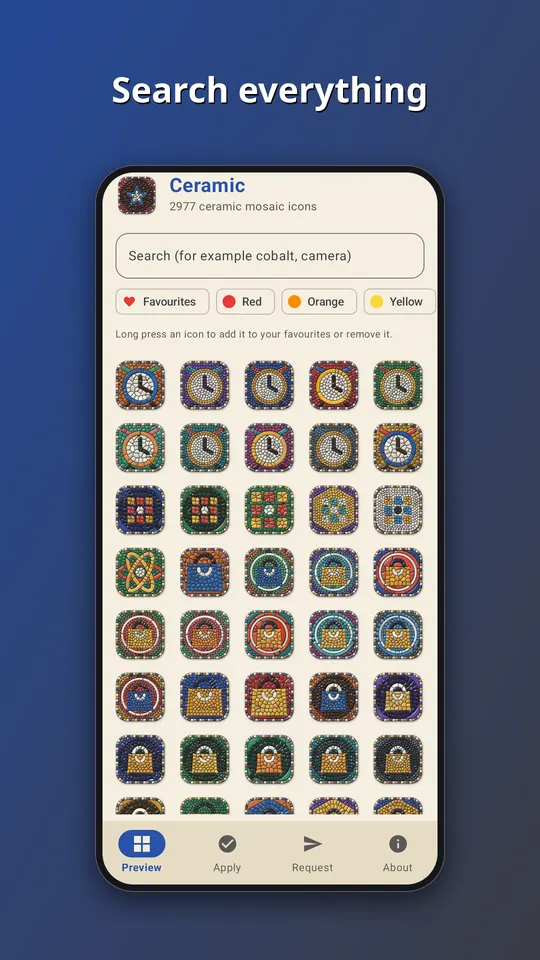
- An app that follows your phone into light or dark mode, with search across the whole set.
- An icon request screen. Tap Send and the list of apps you see, plus an email if you type one, goes straight to the developer. That is the only time the app goes online.
- No ads, no analytics and no subscription. It is a one-time purchase of EUR 1.49 on Google Play.
All the symbols are generic. They are drawn by our own tools, and none of them copies a company logo, so no app is promised an exact match. Apps get a symbol that suits what they do, in a colour close to their own.
How to use it
- Install a launcher that supports icon packs. Many do, and your current one may already.
- Open Ceramic and go to the Apply tab. Pick your launcher for a one-tap apply, or open the launcher settings and choose Ceramic as the icon pack.
- Later, after the pack has been updated, tap Refresh icons in the app to apply the new set again. If the launcher still shows old icons, restart it.
Take a look
You can read more on the Ceramic: Glazed Mosaic Icons page, watch the trailer on YouTube, or go straight to Ceramic on Google Play. If an icon you need is missing, send us a request from the app and we will see what we can do.
More icon packs: Terrazzo: Marble Chip Icons and Clay: Plasticine Icon Pack.