
Most icon packs try to make your screen louder. Japandi does the opposite. It borrows the calm of a Japanese tea room and a Scandinavian living room, where there are fewer things, better things and room around them.
Space is part of the design
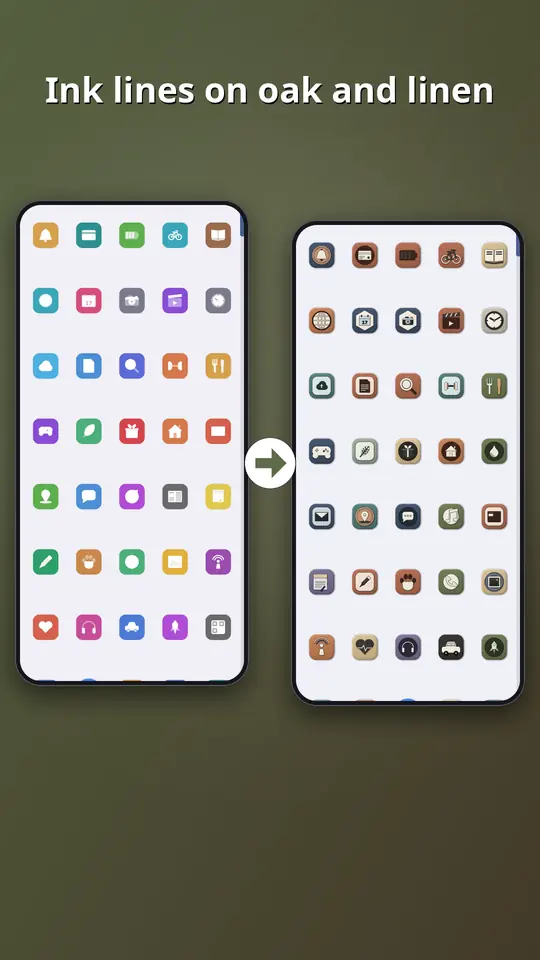
Each symbol sits small on its plate, with a wide margin left empty on purpose. A crowded home screen stays uncluttered, and your wallpaper gets some air again. The plates are matte with soft corners, in three surfaces: oak with a fine grain, woven linen, or rice paper with long pale fibres. Symbols are glazed like hand-thrown stoneware and traced with one thin ink line.
Taking things away
Most of the work on Japandi was subtraction. Light falls gently from the top left, shadows are soft, and there is no gloss at all, because gloss is the first thing that makes a screen feel busy. We also tuned the palette down until nothing could shout. The ten tones are muted, and the persimmon is as loud as it gets. Whatever we have not drawn yet sits on a plain linen plate, so even the leftovers look intentional.
What is inside
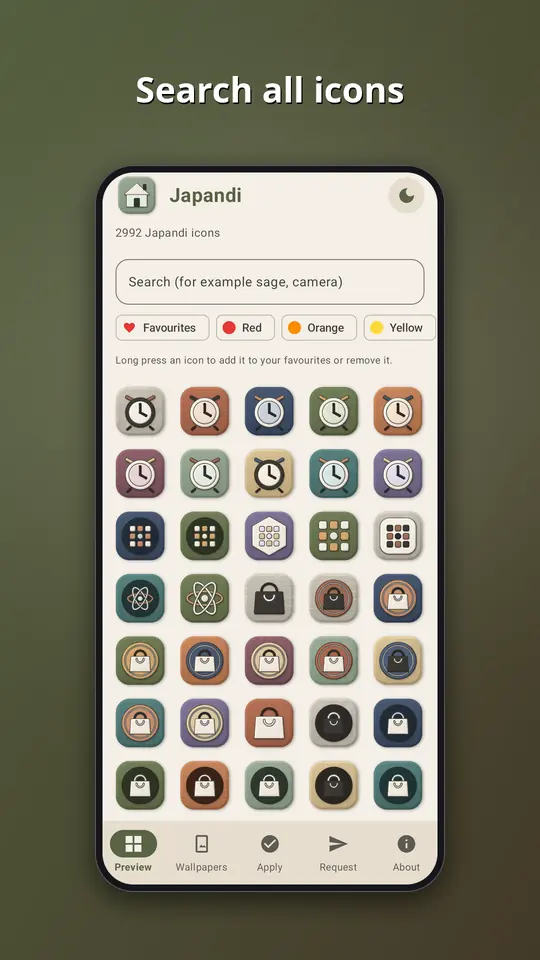
- 2,900+ icons in one style, in ten muted tones: indigo, plum, sand, moss, clay, wisteria, tide, ash, persimmon and sage.
- A fallback tile for apps that have no icon of their own yet, a plain linen plate, on launchers that let an icon pack supply one, so the grid has no gaps.
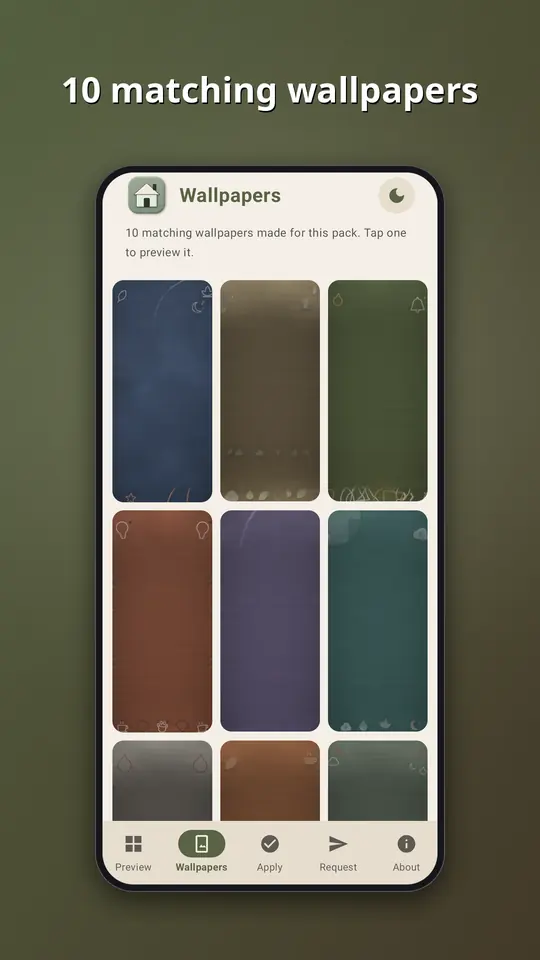
- 12 matching wallpapers, made to go with the icons. Set one for the home screen, the lock screen or both from the Wallpapers tab.
- Dark and light mode, with a toggle in the app or following your phone, and search across the whole set.
- An icon request screen. Tap Send and the list of apps you see, plus an email if you type one, goes straight to the developer. That is the only time the app goes online.
- No ads, no analytics and no subscription. It is a one-time purchase of EUR 1.99 on Google Play.
All the symbols are generic. They are drawn by our own tools, and none of them copies a company logo, so no app is promised an exact match. Apps get a symbol that suits what they do, in a colour close to their own.
Twelve wallpapers to match
An icon pack looks best on a wallpaper that belongs to it, so Japandi comes with twelve. They share the colours and the mood of the icons, and you can set any of them from the app without installing anything else.
How to use it
- Install a launcher that supports icon packs, such as Nova Launcher, Lawnchair, Niagara, Smart Launcher, Apex Launcher or ADW Launcher. Your current one may already.
- Open Japandi and go to the Apply tab. Pick your launcher for a one-tap apply, or open the launcher settings and choose Japandi as the icon pack.
- Later, after the pack has been updated, tap Refresh icons in the app to apply the new set again. If the launcher still shows old icons, restart it.
On a Samsung phone? Samsung's own launcher, One UI Home, does not support icon packs, so install one of the launchers above first and set it as your home app. The app has a short guide that walks you through it.
Take a look
You can read more on the Japandi: Calm Minimal Icons page or go straight to Japandi on Google Play. If an icon you need is missing, send us a request from the app and we will see what we can do.
More icon packs: Woodblock Print: Ink Icons and Ceramic: Glazed Mosaic Icons.