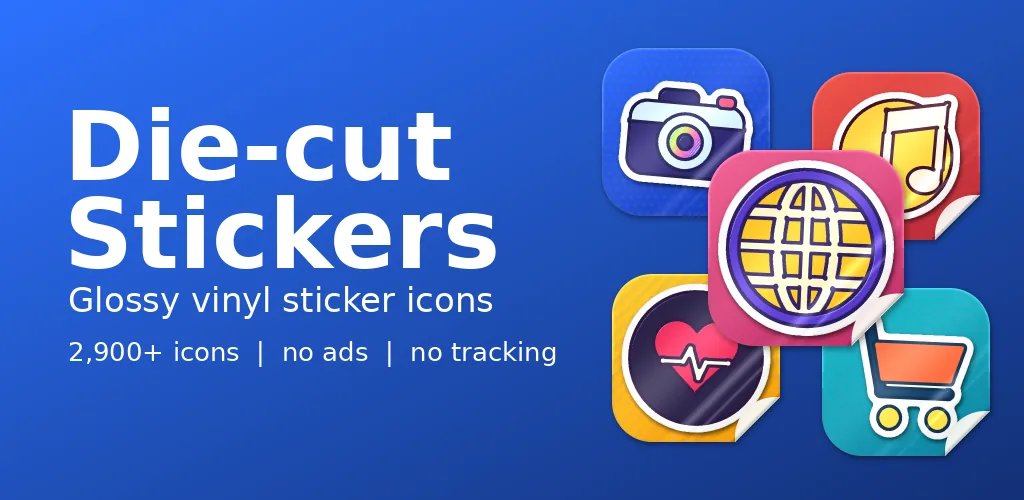
Everyone had a sticker sheet that was too nice to use. Die-cut Stickers puts that feeling on your phone, with more than 2,900 icons that each look like a glossy vinyl sticker, trimmed around its own outline and pressed onto a bright sheet.
Bold ink, white border, peeling corner
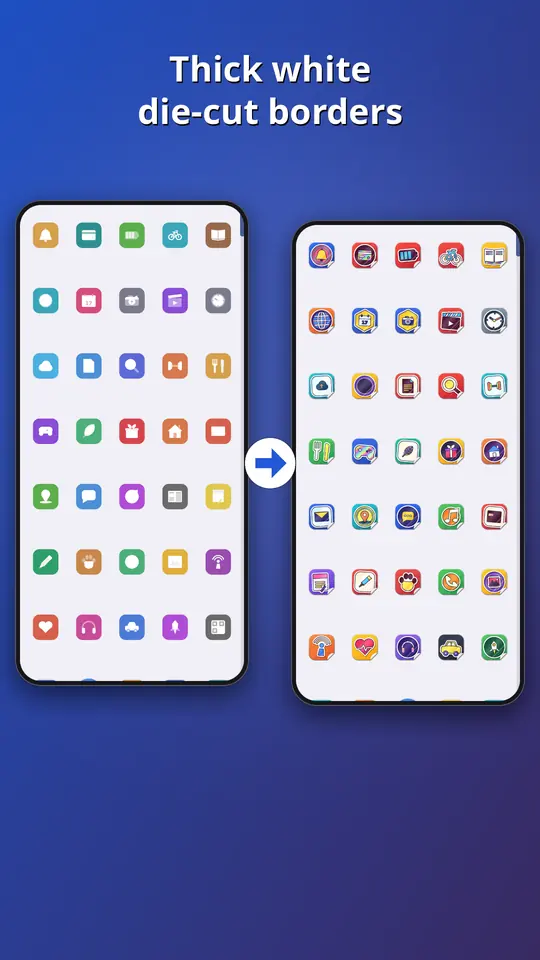
Every symbol has a bold ink outline and a thick white die-cut border, just like a real sticker. One corner peels up a little, and a soft sheen runs across the vinyl from the top left. The shape stays easy to read, even small. The sticker is stuck on a bright matte sheet with a subtle pattern: tiny dots, a fine grid or diagonal stripes.
One in six sparkles
A page full of identical vinyl gets dull, so about one icon in six gets a holographic foil finish that shifts from pink to blue to gold. The effect is sparse on purpose. Just a few sparkles scattered through a full home screen feels like a treasure hunt, while too many turns it into a disco. The white border does a surprising amount of work: it separates each sticker from the sheet and from the wallpaper, so the grid stays readable.
What is inside
- 2,900+ icons in one style, in ten juicy sheet colours: blueberry, bubblegum, lemon, lime, cherry, grape, lagoon, slate, tangerine and mint.
- A fallback tile for apps that have no icon of their own yet, a bare sheet, on launchers that let an icon pack supply one, so the grid has no gaps.
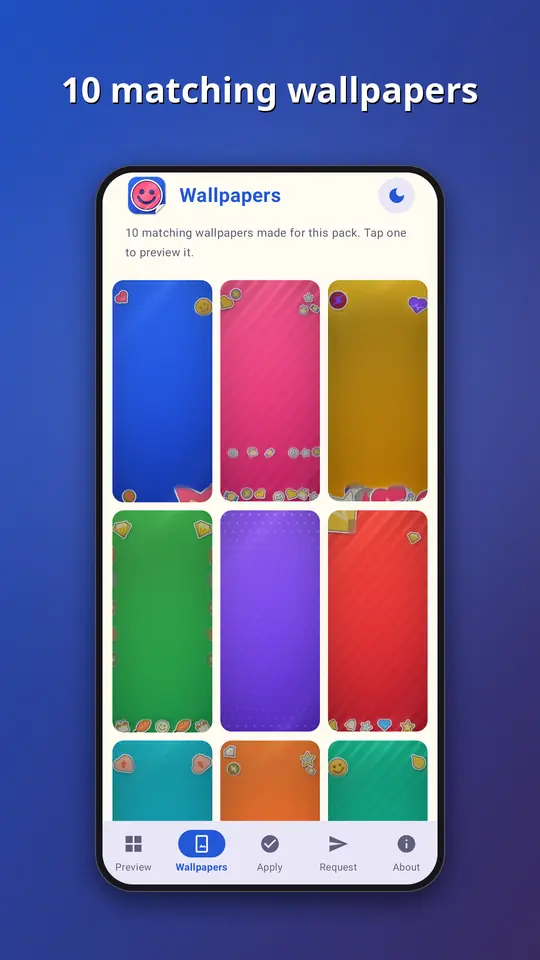
- 12 matching wallpapers, made to go with the icons. Set one for the home screen, the lock screen or both from the Wallpapers tab.
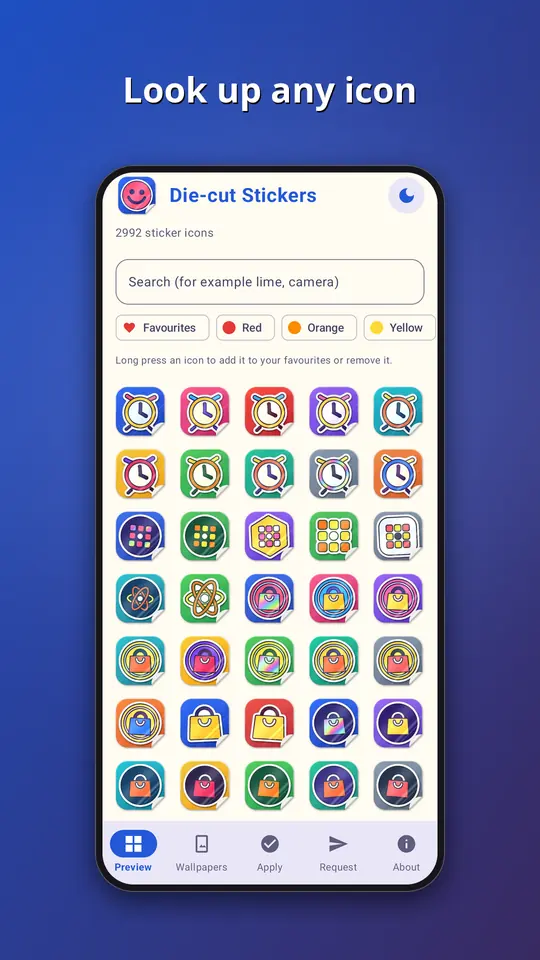
- Dark and light mode, with a toggle in the app or following your phone, and search across the whole set.
- An icon request screen. Tap Send and the list of apps you see, plus an email if you type one, goes straight to the developer. That is the only time the app goes online.
- No ads, no analytics and no subscription. It is a one-time purchase of EUR 1.99 on Google Play.
All the symbols are generic. They are drawn by our own tools, and none of them copies a company logo, so no app is promised an exact match. Apps get a symbol that suits what they do, in a colour close to their own.
Twelve wallpapers to match
An icon pack looks best on a wallpaper that belongs to it, so Die-cut Stickers comes with twelve. They share the colours and the mood of the icons, and you can set any of them from the app without installing anything else.
How to use it
- Install a launcher that supports icon packs, such as Nova Launcher, Lawnchair, Niagara, Smart Launcher, Apex Launcher or ADW Launcher. Your current one may already.
- Open Die-cut Stickers and go to the Apply tab. Pick your launcher for a one-tap apply, or open the launcher settings and choose Die-cut Stickers as the icon pack.
- Later, after the pack has been updated, tap Refresh icons in the app to apply the new set again. If the launcher still shows old icons, restart it.
On a Samsung phone? Samsung's own launcher, One UI Home, does not support icon packs, so install one of the launchers above first and set it as your home app. The app has a short guide that walks you through it.
Take a look
You can read more on the Die-cut Stickers: Vinyl Icons page or go straight to Die-cut Stickers on Google Play. If an icon you need is missing, send us a request from the app and we will see what we can do.
More icon packs: Kawaii Friends: Cute Icons and Gummy: Candy Icon Pack.